
Registering a schema
Create Schema opens as a resizable drawer (or arrives pre-filled from a topic’s Schema tab):- Pick the Schema Type — AVRO, JSON, or PROTOBUF — and whether it’s for the key or the value.
- Pick a Naming Strategy — TopicNameStrategy, RecordNameStrategy, or TopicRecordNameStrategy — and fill in the topic and/or record name it asks for. The read-only Subject preview updates to exactly what will be registered, so there’s never a surprise about the subject name.
- Write the schema in the editor (seeded with a minimal template for the chosen type).
- Submit — a View Schema? shortcut takes you to the new subject.
The schema detail page
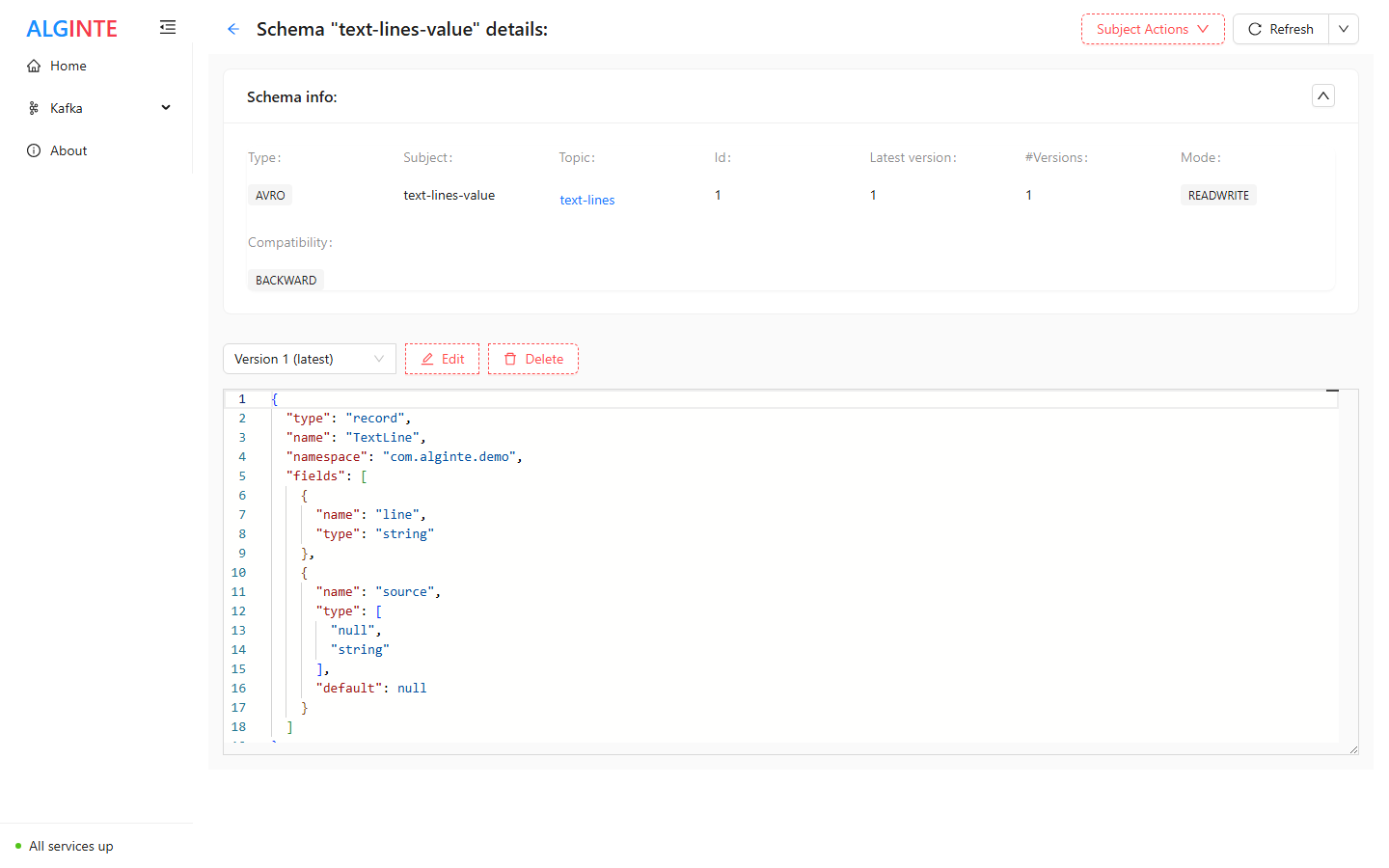
A subject's detail page: the info card, the version selector, and the schema source.
- An info card — type, versions, and the subject’s compatibility and mode, with the same inherited-vs-explicit distinction as the list.
- The schema editor — read the current version, or Edit and submit: a successful submit registers the next version (subject to the compatibility rules).
- A Compare versions switch (appears once the subject has two or more versions) — a side-by-side diff of any two versions, the fastest way to answer “what changed between v3 and v7?”.
- A Subject Actions menu — set or clear the subject’s own compatibility level and mode (overriding the global default), delete a single version, or delete the subject.
Compatibility is what makes evolution safe: with a compatibility level set,
the registry rejects a new version that would break existing consumers —
the submit fails with the reason. Prefer fixing the schema over loosening
the level.