
Step 1 — Stream Properties
The stream’s identity and configuration:application.id(required) — the Kafka Streams application id. It names the consumer group, prefixes the internal topics, and identifies the stream everywhere in Alginte (including its detail-page URL). Pick it deliberately: redeploying under the same id resumes from the same committed offsets and state.bootstrap.servers(required) — usually your cluster’s default.- Serde defaults — the default key/value types records are read and written with; individual nodes can override them later.
- Optional groups for resiliency (replication factor, standby replicas, state directory) and error handling (the dead-letter-queue topic), plus any other Kafka Streams property.
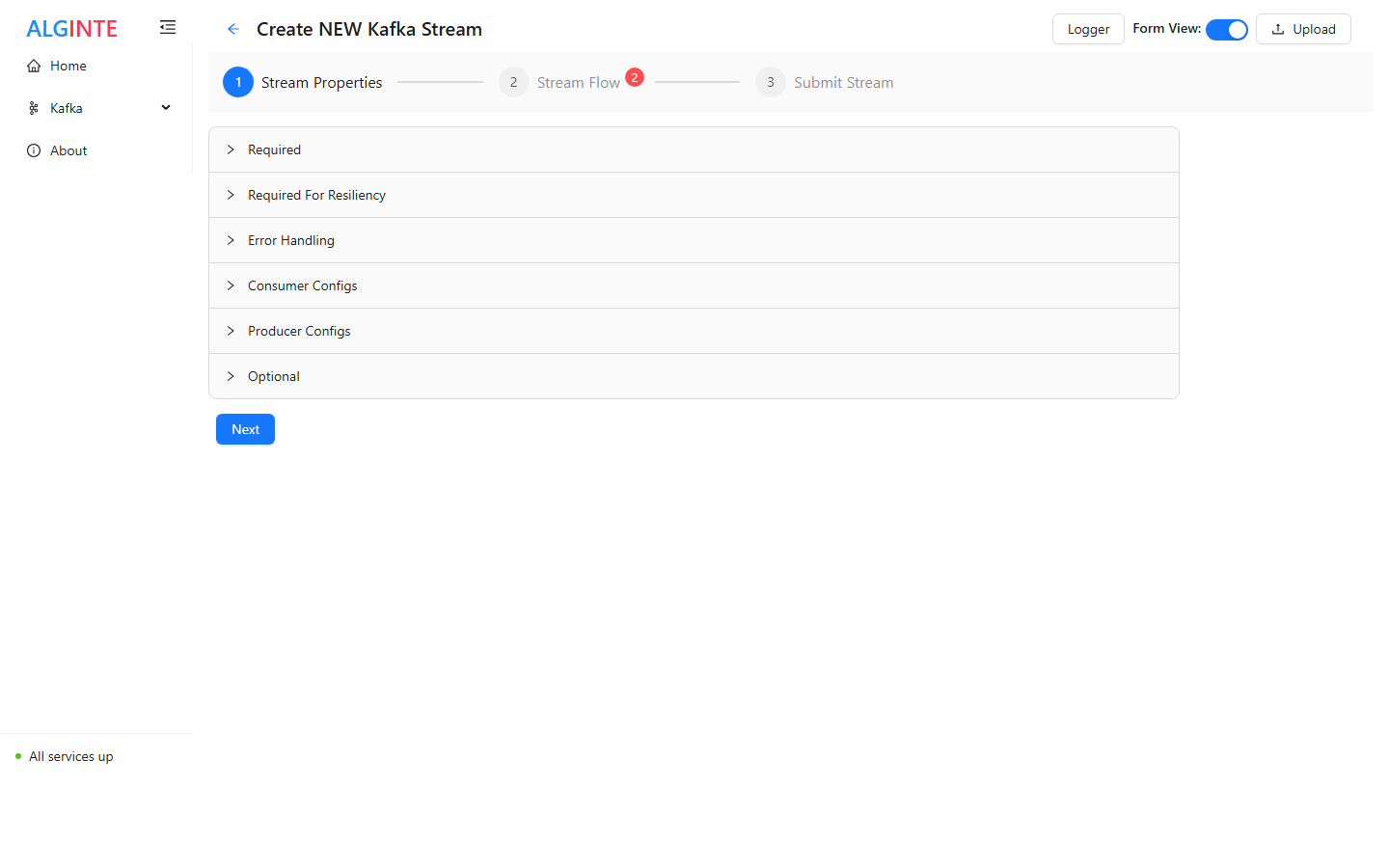
Step 1 — grouped configuration; the badge on step 2 shows the canvas still has unresolved errors.
Step 2 — Stream Flow: the canvas
The node palette sits beside the canvas, grouped by category — Source, Stateless, Group, Aggregate, Window, Join, Branch / Merge, Convert, Suppress, Terminal. Drag an item onto the canvas to add it, then draw edges between node handles to define the record flow.- Start with a Source (Stream Source, Table Source, or Global Table Source) reading from a topic.
- Add processors — Map, Filter, Group By, Aggregate, Join, windowing and the rest of the operator set (see the overview).
- End each branch in a Terminal node — typically a Sink writing to a topic.
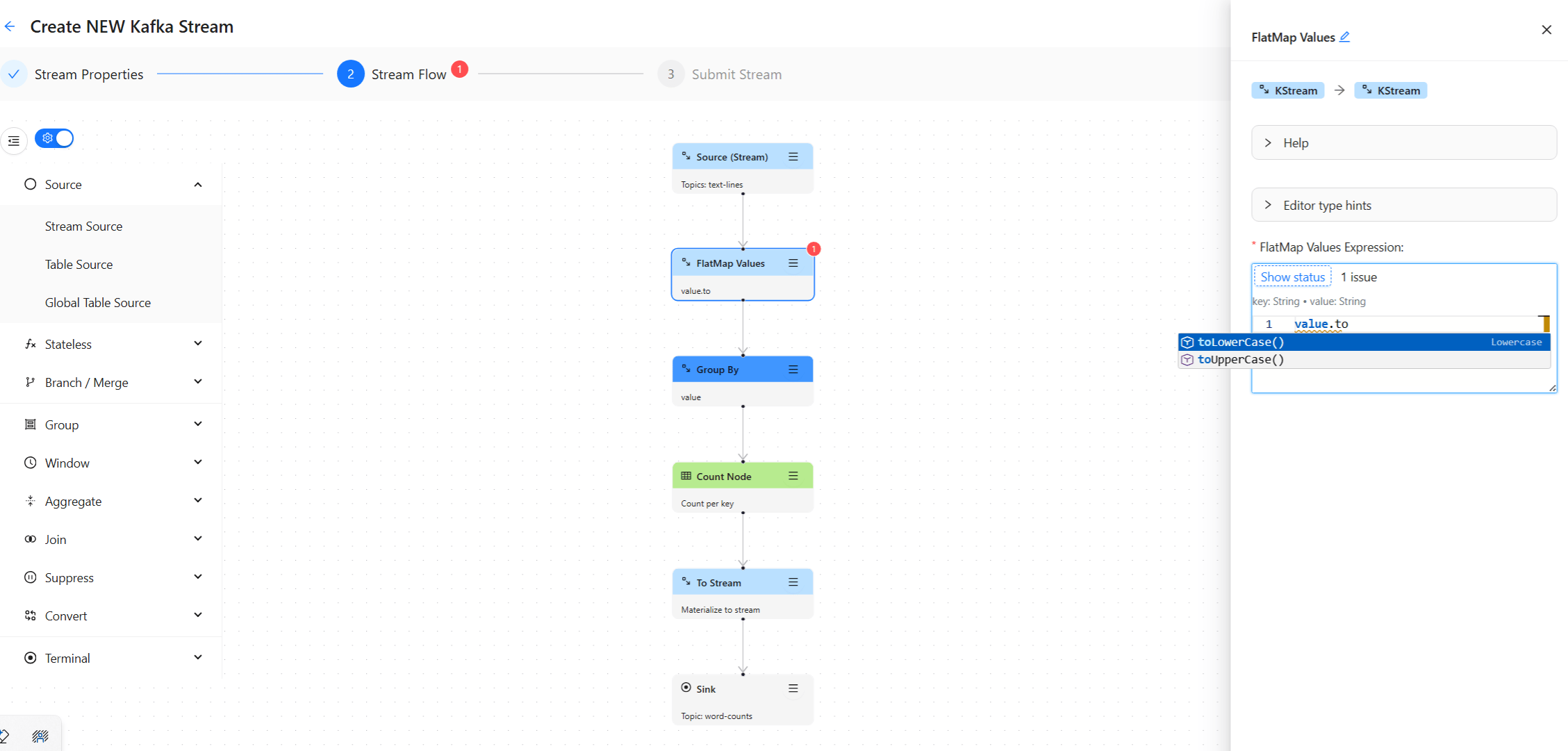
The canvas at work: the palette on the left, the word-count topology, and a node's drawer open with its expression editor.
Validation as you build
Nodes, wizard steps, and palette groups carry error badges while something is incomplete — a missing topic, an unconnected handle, an invalid expression. Hover a badge to read the messages. When the canvas is clean, Next unlocks. Three badges look past the node itself, at what the graph would do deployed: a join whose inputs are not co-partitioned, a sink whose value serde cannot serialize what reaches it, and a sink that a windowed key reaches with nothing re-keying in between. Each names the fix, and the deploy refuses the same graph with the same message.Editing shortcuts
- Copy / paste: Ctrl+C / Ctrl+V — works for multi-node selections, including their connections.
- Undo / redo: Ctrl+Z / Ctrl+Y.
- Multi-select: hold Shift and drag a box around nodes (box selection — not Shift+click).
- Alignment toolbar for tidying the selected nodes.
Save your work: Download / Upload
The wizard header has Download (export the whole design — configuration and canvas layout — as JSON) and Upload (import one back, ready to edit or submit). Export is your durable copy: designs live in the file, not in the server. Download early, download often. A design carries its logic, not its cluster. If an uploaded file hasbootstrap.servers, a Schema Registry URL or security settings in its
configuration, the upload leaves them out and a notice names which, so the
connection that applies is this console’s own. Set them on Stream Properties
only if this stream needs values of its own. That is what lets a design made
in the playground deploy on the console that runs against your cluster
(From the playground to your cluster).
Available from Alginte 0.13.0.